
All Planes Off - Selected
Overview
All Planes Off hides all work planes in the selected component occurrence. Use it to quickly remove construction geometry clutter when you are done aligning, constraining, or inspecting.
If the component contains a user parameter named ShowPlanes, this command sets it to False. You can use this parameter in component rules to keep certain planes always visible or to manage visibility of specific named planes.
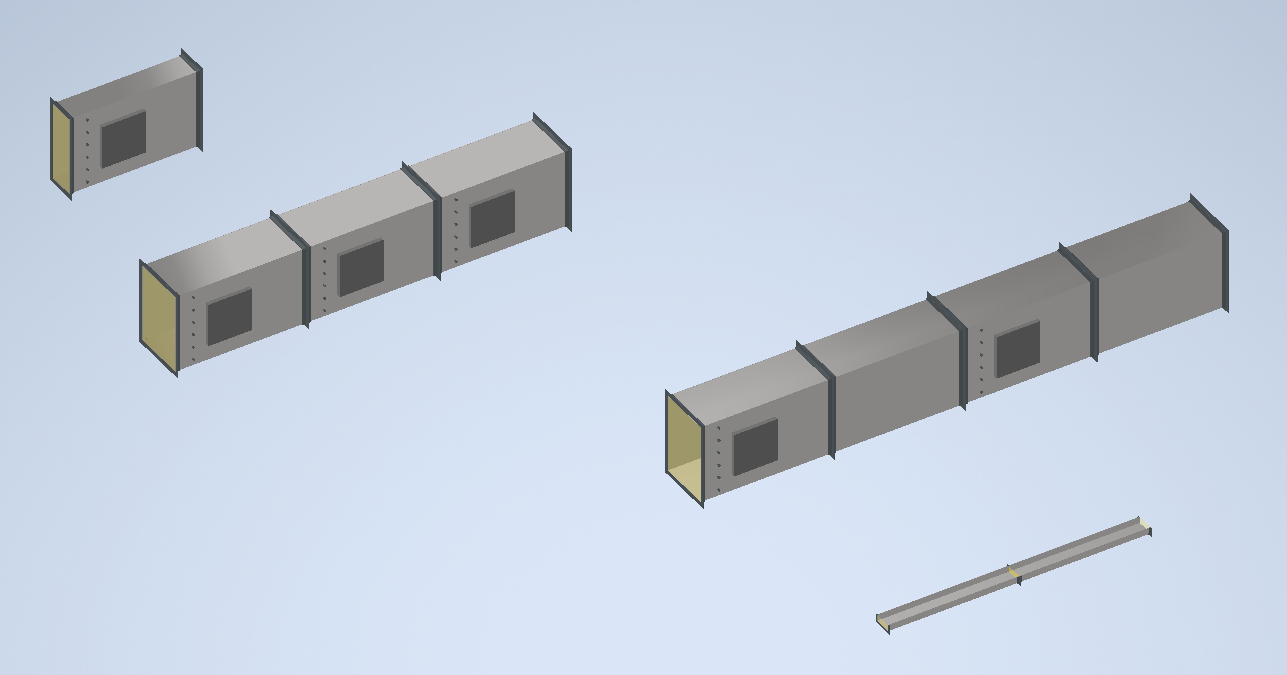
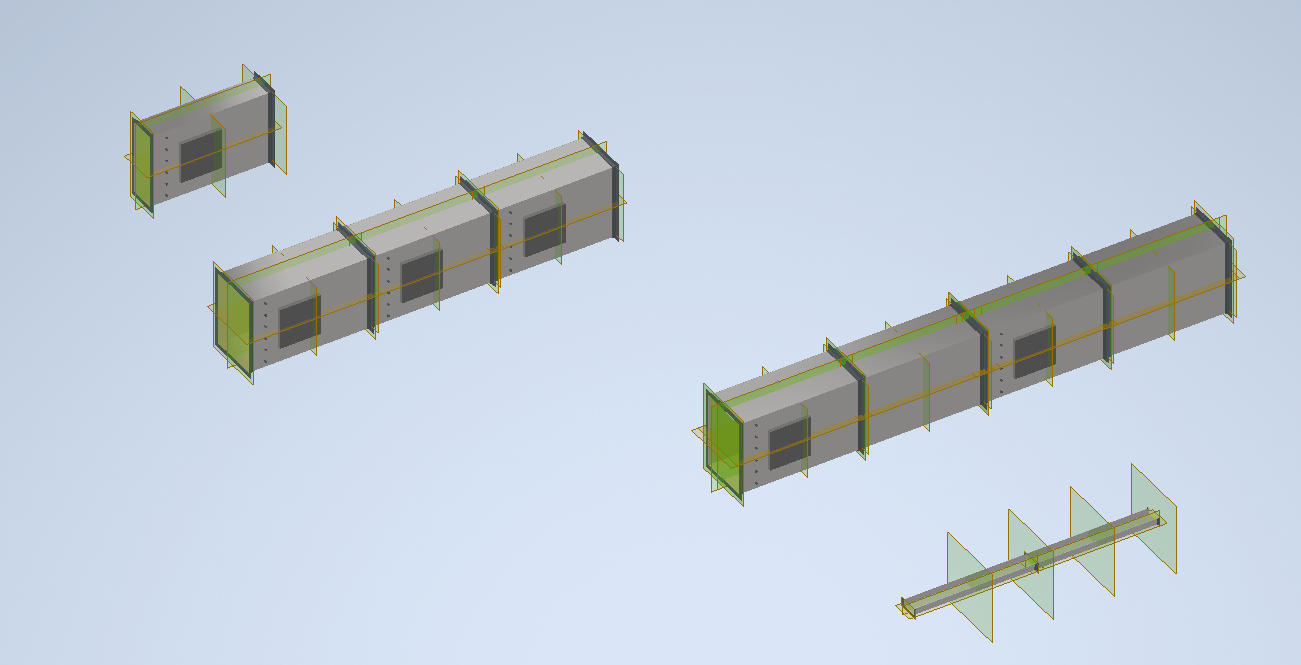
Sample on the left before turning on all work planes, sample on right after turning them on.
How It Works
- Prompts you to pick one or more component occurrences (selection set allowed).
- For each selected component document:
- Sets ShowPlanes to False (if present).
- Iterates all work planes in the component and sets them Visible = False.
- Updates the document.
- Component rules may override visibility for specific planes after the command runs.
Usage Instructions
- Select the target component occurrence(s) in the assembly.
- Click All Planes Off in the Configure panel.
- Review the component(s) to confirm all work planes are hidden.
Troubleshooting
- Some planes remain visible: Check for component rules or representations that override plane visibility.
- You only needed to hide origin planes: Use Planes Off to hide only planes 1–3.
